

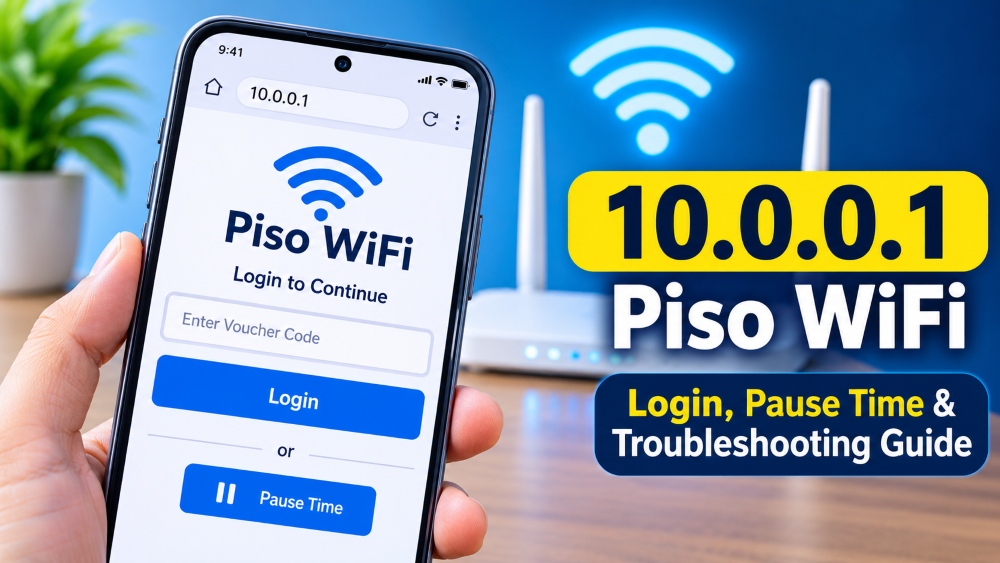
The 10.0.0.1 Piso WiFi address is commonly used to open the local login portal on a coin-operated Piso WiFi hotspot. When connected to the correct network, users can visit http://10.0.0.1 through a browser to access available options, such as entering a voucher, checking remaining internet time, or pausing a session when the machine supports that feature.
However, 10.0.0.1 is not a universal login address for every router or public WiFi network. It works only when the connected network uses that address as its local gateway. This guide explains how to access the portal, manage a session, distinguish customer access from administrator settings, and troubleshoot problems on phones and computers.
What Is 10.0.0.1 and How Does Piso WiFi Use It?
10.0.0.1 is a private IPv4 address that can be assigned to a router or local network gateway. On many Piso WiFi installations, it provides access to the customer-facing portal where users manage paid internet sessions.
Piso WiFi is commonly associated with coin-operated wireless internet services in the Philippines. A customer connects to the machine’s WiFi network, opens its portal, and follows the payment or voucher instructions. The system then grants internet access according to the operator’s settings.
It is important to understand that the address itself is not a public website. You generally cannot open a nearby Piso WiFi machine’s portal while using mobile data, your home broadband, or an unrelated WiFi connection.
Customer Portal vs. Admin Login
These two interfaces serve different purposes:
| Interface | Common address | Main purpose |
|---|---|---|
| Customer portal | http://10.0.0.1 | Voucher entry, payment, session time and pause options |
| Admin panel | http://10.0.0.1/admin | Machine configuration, rates, users and system management |
Customers normally need the main portal, not the administrator dashboard. The admin panel is intended for the machine owner or authorised operator.
How to Access the 10.0.0.1 Piso WiFi Login Page
You can open the Piso WiFi portal using an Android phone, iPhone, laptop, or desktop computer. The most important requirement is connecting to the correct hotspot before entering the address.
Follow these steps:
- Open the WiFi settings on your device.
- Select the Piso WiFi network you want to use and connect to it.
- If the network requires payment or a voucher, wait until you reach its sign-in process.
- Open Chrome, Safari, Edge, or another browser.
- Type
http://10.0.0.1directly into the browser’s address bar. - Press Enter or Go to load the portal.
- Follow the displayed instructions to insert payment, enter a voucher, or access your session.
If the login page appears automatically after connecting, you can use that page instead. Some devices display a notification such as Sign in to network when they detect a captive portal.
Accessing the Portal on Android and iPhone
On Android, connect to the hotspot and open your browser if the sign-in notification does not appear. On an iPhone, join the network through Settings and check whether iOS opens its sign-in window automatically.
If the portal address does not work, check the connected network’s gateway information. On many Android devices, this appears in the WiFi network details. On an iPhone, open Settings, select WiFi, and tap the information icon beside the connected network. Look for the Router field.
Use the displayed gateway address if it differs from 10.0.0.1.
How to Pause and Resume Piso WiFi Time
The pause feature allows customers to stop an active session temporarily instead of using all their purchased internet time at once. However, the machine operator must support and enable this option. Not every Piso WiFi network offers it.
To pause your session:
- Connect to the same Piso WiFi network you used when purchasing access.
- Open
http://10.0.0.1in your browser. - Find the active session or remaining-time section.
- Select Pause or Pause Time, if the option is available.
- Wait for the portal to confirm that the session is paused.
To resume browsing, reconnect to the same hotspot, reopen the portal, and select Resume or Continue if displayed.
Important: Do not assume that a paused session will remain available indefinitely. The operator may set session-expiry rules, pause limits, or restrictions on how many times a customer can pause. Check the portal’s instructions before leaving the network for an extended period.
Why Is 10.0.0.1 Not Opening?
If the portal does not load, the problem is often related to the network connection, an incorrect gateway address, or the hotspot’s configuration. Try the following checks before assuming the machine is faulty.
1. Check the Connected WiFi Network
Make sure your phone or computer is connected to the Piso WiFi machine you intend to use. The address will not normally open if you are connected to your home router, another public hotspot, or mobile data.
2. Type the Full Address Correctly
Enter http://10.0.0.1 in the browser’s address bar, not the search field. Check that you have used three dots and no spaces. Typing a slightly different address can send you to search results instead of the local portal.
3. Temporarily Turn Off Mobile Data and VPN
Some phones may prefer mobile data when WiFi has no internet access yet. Temporarily disable mobile data and any VPN, then reload the portal. If you use a private DNS service, temporarily switch it to Automatic or Off to check whether it is interfering with the local sign-in page.
4. Check the Router or Gateway Address
Not every Piso WiFi machine uses 10.0.0.1. Check the Router or Gateway field in your device’s WiFi details and enter the address shown there. This is more reliable than repeatedly trying random IP addresses.
5. Reconnect and Contact the Operator
Disconnect from the hotspot, reconnect, and open the portal again. If the correct gateway still does not respond, the machine may be offline, restarting, or experiencing a configuration problem. Ask the operator to check the equipment rather than attempting to change its settings yourself.
How to Enter a Piso WiFi Voucher Code
A voucher is a payment code supplied by the hotspot operator or seller. It may provide a set amount of browsing time or access under a particular package.
To use one, open the customer portal and look for a field labelled Voucher, Code, or something similar. Enter the code exactly as printed, paying attention to letters, numbers, and capitalisation, then select the submit or login option.
If the portal rejects the code, check that:
- You are connected to the correct Piso WiFi machine.
- The voucher has not already been used.
- You have entered every character correctly.
- The voucher is still valid and has not expired.
- The code is intended for the payment system used by that machine.
A voucher purchased for one operator’s network may not work on another. If the code appears valid but is repeatedly rejected, ask the seller or operator to verify it.
Is 10.0.0.1 Safe to Use?
The address 10.0.0.1 belongs to a private IP address range. It is designed for local network communication rather than direct access over the public internet. The wider 10.0.0.0/8 range is reserved for private networks under RFC 1918. RouterOS Manual
Opening a legitimate local portal is a normal part of using a captive WiFi hotspot. Still, take care when using shared networks:
- Do not enter your email, banking, or social media passwords into an unfamiliar portal.
- Check that the page is the expected login screen for the hotspot.
- Avoid sensitive financial activity on public WiFi where possible.
- Use websites with HTTPS when browsing.
- Do not download unknown applications simply because a portal page recommends them.
A genuine customer portal should provide the access or payment options configured by the operator. It should not need your personal account passwords to activate a basic internet session.
Why Do Some Piso WiFi Machines Use a Different IP Address?
Although 10.0.0.1 is a commonly used gateway, the actual address depends on how the network administrator configured the equipment. A different router model, hotspot platform, or custom network setup may use another private IP address.
For example, a home router in the UK or USA might also use a private gateway address, but that does not mean it operates a Piso WiFi service. The same distinction applies to networks in Lebanon and other countries. A private IP address identifies a device or gateway within a local network; it does not identify a particular internet provider or service.
The RFC 1918 documentation explains the private IPv4 address ranges. For additional technical background, the MikroTik HotSpot documentation explains how captive portals control access until a user completes authentication. RouterOS Manual
Frequently Asked Questions About 10.0.0.1 Piso WiFi
What is 10.0.0.1 used for?
10.0.0.1 is a private network address commonly used as the gateway for certain routers and Piso WiFi machines. When connected to a compatible hotspot, users can open its local portal through a browser.
Can I access 10.0.0.1 without connecting to Piso WiFi?
Usually, no. You must connect to the local network that uses this gateway address. Mobile data or an unrelated WiFi connection generally cannot access that machine’s portal.
How do I open 10.0.0.1 on my phone?
Connect to the correct Piso WiFi network, open your browser, and enter http://10.0.0.1 in the address bar. If the page does not appear, check your device’s gateway information.
Why is there no Pause Time button?
The operator may have disabled the pause feature, or the particular hotspot software may not provide it. Customers cannot normally enable this option themselves. Ask the machine owner about the available session settings.
Can I use the same Piso WiFi voucher on another machine?
Not necessarily. Vouchers are often configured for a particular operator or payment system. Check the voucher’s conditions or contact the seller before attempting to use it elsewhere.
Is 10.0.0.1 the same as 192.168.1.1?
No. Both are private IPv4 addresses, but they are different addresses. A router or hotspot can use either one, depending on its network configuration.
Does 10.0.0.1 have a universal admin username and password?
No. Administrator credentials depend on the router and hotspot software. There is no single username and password that works across all Piso WiFi machines. Only authorised owners or administrators should access the management panel.
Final Thoughts
The 10.0.0.1 Piso WiFi address provides a convenient way to access the local portal on compatible hotspot networks. Users can follow the portal instructions to enter vouchers, check their remaining internet time, and use pause or resume controls when the operator has enabled them.
If the page fails to load, start by checking your WiFi connection and the gateway address rather than assuming the service is unavailable. These simple checks can help identify whether the issue is with your device, network configuration, or the hotspot itself.
For more helpful online guides, gaming information, and digital entertainment content, visit Exposed Game. Explore the website and discover useful resources for your next online experience. If you have a question or need assistance, get in touch through the website’s Contact Us page.
Internal Linking Suggestions
Add these contextual internal links when publishing:
- Homepage: Link the phrase “Exposed Game” in the final paragraph to https://exposedgame.com/.
- Relevant gaming guide: Link a suitable article about browser-based online games from the introduction or final section.
- Related technology guide: Link an existing article about internet connectivity, online access, or mobile troubleshooting within the troubleshooting section.
- Contact Us page: Link “Contact Us” in the final paragraph to the website’s existing contact page.
Use existing relevant pages on Exposed Game rather than creating links to pages that do not exist.
External Link Suggestions
Written by Sawyer Eli | I have been in the marketing industry for 7 years and have a good amount of experience working with companies to help them grow their social media presence. My expertise is content creation and management, as well as social media strategy. I’m also an expert at SEO, PPC, and email marketing.
